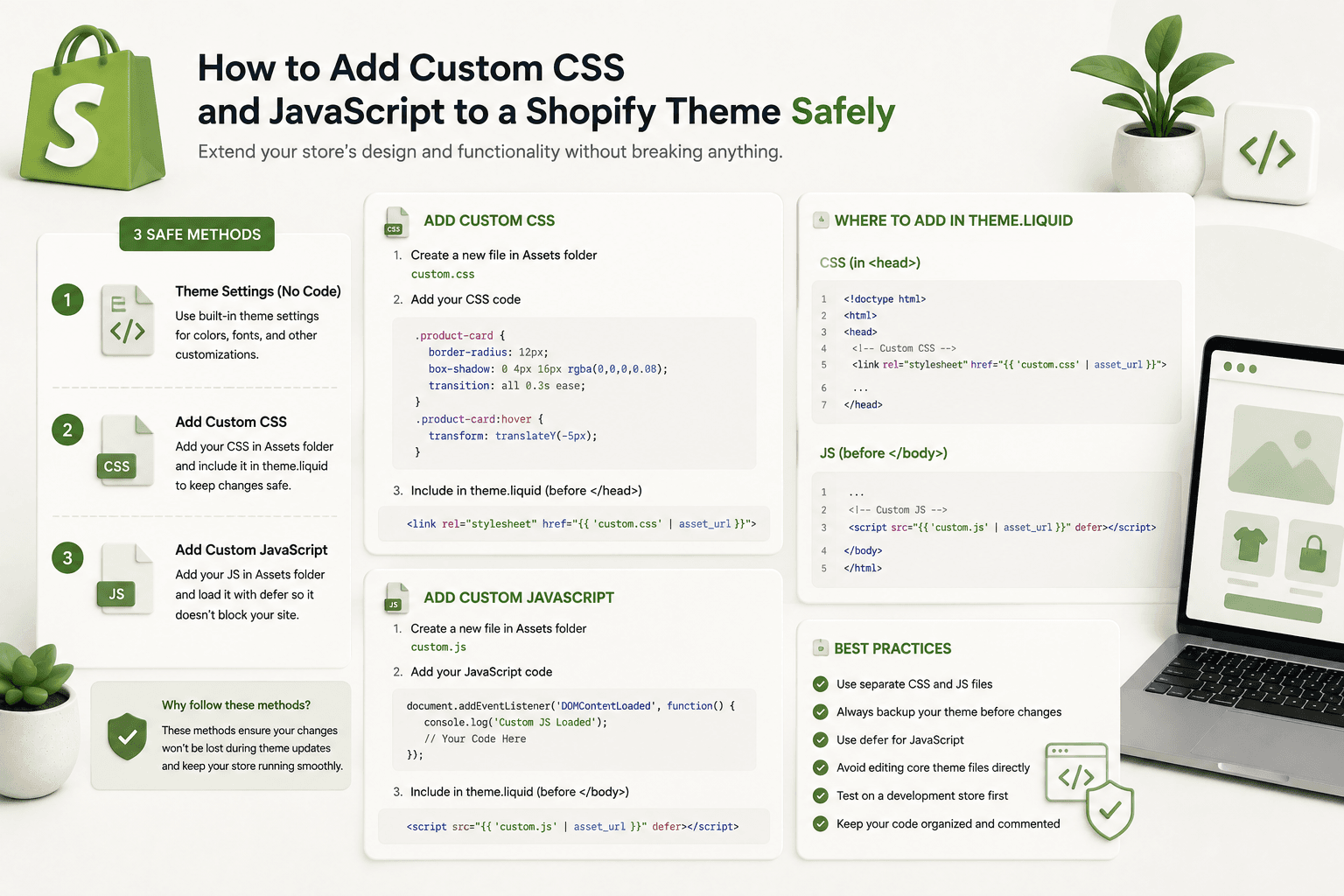
Adding custom CSS and JavaScript is one of the most common tasks when customizing a Shopify store.
A client might ask you to change the design of a product page, add a custom slider, create an accordion, modify the cart drawer, add animations, or implement a completely custom section.
These changes often require CSS, JavaScript, or both.
The problem is that adding custom code without considering the existing theme architecture can create unexpected issues.
A CSS selector can accidentally change another section. A global JavaScript event listener can interfere with existing theme functionality. A large library loaded on every page can hurt performance.
In this guide, we'll explain how to add custom CSS and JavaScript to a Shopify theme safely, how to avoid conflicts, where to put your code, how to load scripts responsibly, and how to test your changes before deploying them.
Why Shopify Store Speed Matters
Why Custom CSS and JavaScript Can Break a Shopify ThemeModern Shopify themes already contain CSS, JavaScript, Liquid components, sections, snippets, and third-party integrations.
Your custom code doesn't run in isolation.
For example, suppose you add:
.button {
    background: black;
}
This selector may affect buttons throughout the theme rather than only the component you intended to customize.
JavaScript can create similar problems.
A script such as:
document.querySelector('.button')
    .addEventListener('click', function () {
        // custom code
    });
may target an unexpected element if multiple buttons use the same class.
The solution is not to avoid custom CSS and JavaScript. The solution is to write code that is isolated, predictable, and easy to maintain.
Why Shopify Store Speed Matters
Where Should Custom CSS Go in Shopify?There isn't one universal location for every Shopify project. The best approach depends on the scope of your customization.
Common options include:
- Existing theme CSS files
- A dedicated custom CSS asset
- Section-specific styles
- Theme settings and CSS variables
- Inline styles for very specific dynamic values
For a larger project, a dedicated custom stylesheet can make custom code easier to identify and maintain.
For example:
assets/custom.cssThis makes it clear where project-specific styles live.
Why Shopify Store Speed Matters
Where Should Custom JavaScript Go?JavaScript can also be organized in a dedicated asset file.
assets/custom.jsFor larger projects, you may use multiple files based on functionality:
assets/
    custom.js
    product.js
    cart.js
    slider.js
The exact structure depends on the theme and project requirements.
The important principle is to avoid creating a single enormous JavaScript file containing unrelated functionality when a cleaner structure would make the project easier to maintain.
Why Shopify Store Speed Matters
1. Inspect the Existing Theme Before Adding CodeOne of the biggest mistakes developers make is immediately adding custom code without first understanding the existing theme.
Before changing anything, inspect:
- Theme layout
- Relevant sections
- Snippets
- Existing CSS
- Existing JavaScript
- Theme settings
- Third-party app code
You may discover that the theme already provides the functionality you need.
If a feature already exists, extending it may be safer than creating a second implementation.
Why Shopify Store Speed Matters
2. Use Unique CSS Class NamesThis is one of the most important rules for Shopify theme customization.
Avoid overly generic classes such as:
.title
.button
.container
.image
.content
.card
These classes are likely to exist elsewhere in the theme.
Instead, use component-specific naming.
.custom-promo-banner
.custom-promo-banner__title
.custom-promo-banner__button
.custom-promo-banner__image
This significantly reduces the chance of accidentally changing unrelated components.
Why Shopify Store Speed Matters
Use a Consistent Naming ConventionA naming system such as BEM can be useful for custom Shopify components.
.promo-banner
.promo-banner__content
.promo-banner__title
.promo-banner__button
.promo-banner--dark
The exact naming convention is less important than consistency.
Why Shopify Store Speed Matters
3. Scope Your CSSSuppose you have a custom section:
<section class="custom-feature-section">

    <h2 class="title">
        Our Features
    </h2>

</section>
Instead of:
.title {
    font-size: 40px;
}
use:
.custom-feature-section .title {
    font-size: 40px;
}
Even better, give the element a component-specific class:
.custom-feature-section__title {
    font-size: 40px;
}
This keeps the styling associated with the component it belongs to.
Why Shopify Store Speed Matters
4. Avoid Excessive !important
Developers sometimes use !important whenever a style
doesn't apply.
.button {
    background: red !important;
}
Although !important has legitimate uses, relying on it
everywhere can make CSS increasingly difficult to maintain.
Instead, first understand why your style isn't being applied.
Check:
- Selector specificity
- CSS order
- Theme styles
- Media queries
- Inline styles
- Component state classes
Why Shopify Store Speed Matters
5. Use CSS Variables for Repeated ValuesCSS custom properties can make custom Shopify styling easier to maintain.
.custom-promo-banner {
    --promo-gap: 24px;
    --promo-radius: 12px;
    --promo-padding: 32px;

    padding: var(--promo-padding);
    gap: var(--promo-gap);
    border-radius: var(--promo-radius);
}
If you need to change the spacing later, you can update one variable rather than searching through multiple declarations.
Why Shopify Store Speed Matters
6. Make Custom CSS ResponsiveA Shopify customization isn't finished just because it looks good on desktop.
Always test:
- Desktop
- Tablet
- Mobile
For example:
.custom-product-banner {
    display: grid;
    grid-template-columns: 1fr 1fr;
    gap: 40px;
}

@media screen and (max-width: 749px) {
    .custom-product-banner {
        grid-template-columns: 1fr;
        gap: 24px;
    }
}
Don't assume that a desktop layout will automatically produce a good mobile experience.
Why Shopify Store Speed Matters
7. Avoid Fixed Dimensions Where PossibleFixed widths and heights can cause overflow problems on smaller screens.
Instead of:
.custom-banner {
    width: 1200px;
    height: 600px;
}
consider a flexible layout:
.custom-banner {
    width: 100%;
    max-width: 1200px;
    min-height: 400px;
}
The exact values depend on the design, but flexible dimensions generally make responsive development easier.
Why Shopify Store Speed Matters
8. Add Custom JavaScript Without Polluting the Global ScopeYour JavaScript should avoid creating unnecessary global variables.
Instead of:
var slider = ...;
var currentSlide = 0;
you can keep variables scoped within a function or module-style structure.
(() => {
    const slider = document.querySelector(
        '.custom-slider'
    );

    if (!slider) return;

    let currentSlide = 0;

    // Slider logic
})();
The early return is important because the script may be loaded on pages where the slider doesn't exist.
Why Shopify Store Speed Matters
9. Always Check Whether an Element ExistsOne of the most common JavaScript errors in Shopify themes occurs when code assumes an element exists on every page.
Avoid:
const button = document.querySelector(
    '.custom-button'
);

button.addEventListener('click', handleClick);
If the button isn't present, this can cause an error.
Instead:
const button = document.querySelector(
    '.custom-button'
);

if (button) {
    button.addEventListener(
        'click',
        handleClick
    );
}
This small check can prevent unnecessary JavaScript errors.
Why Shopify Store Speed Matters
10. Use data-* Attributes for JavaScript HooksIt can be useful to separate JavaScript selectors from purely presentational CSS classes.
For example:
<button
    class="custom-modal__button"
    data-custom-modal-trigger
>
    Open
</button>
JavaScript can then target:
const trigger = document.querySelector(
    '[data-custom-modal-trigger]'
);
This makes it clear that the attribute is being used as a JavaScript hook.
Why Shopify Store Speed Matters
11. Avoid Generic JavaScript SelectorsAvoid selecting elements using overly broad selectors such as:
document.querySelector('.button');There may be many buttons on a Shopify storefront.
Prefer:
document.querySelector(
    '[data-custom-modal-trigger]'
);
or:
document.querySelector(
    '.custom-modal__trigger'
);
The goal is to make your selector target the intended component precisely.
Why Shopify Store Speed Matters
12. Use Event Delegation When AppropriateIf a component contains many dynamically created elements, event delegation can sometimes simplify event handling.
document.addEventListener(
    'click',
    (event) => {

        const button = event.target.closest(
            '[data-cart-action]'
        );

        if (!button) return;

        // Handle action

    }
);
Whether delegation is appropriate depends on the component and event behavior. Don't use it automatically for every interaction.
Why Shopify Store Speed Matters
13. Be Careful With Third-Party AppsShopify stores often contain apps that add their own HTML, CSS, and JavaScript.
Examples include:
- Review apps
- Product recommendation apps
- Cart apps
- Subscription apps
- Popup apps
- Analytics tools
- Chat widgets
Your custom CSS and JavaScript can sometimes interact with these integrations.
Before overriding an app's styles or behavior, understand what the app is doing.
Why Shopify Store Speed Matters
14. Don't Override an Entire App Just to Fix One ElementSuppose an app button has an unwanted margin.
Avoid writing broad CSS such as:
button {
    margin: 0;
}
This could affect the entire storefront.
Instead, target the specific app component if you have a stable and appropriate selector.
Why Shopify Store Speed Matters
15. Load JavaScript Only Where It Is NeededOne of the most important performance principles is avoiding unnecessary JavaScript.
Imagine you create a custom slider that only exists on the homepage.
Loading a large slider library on every product, collection, cart, and information page may be unnecessary.
Consider whether the script can be loaded only when the relevant component exists.
Why Shopify Store Speed Matters
16. Use Lightweight JavaScript Where PossibleNot every interaction requires a large JavaScript library.
A simple accordion may only require a small amount of JavaScript.
document.querySelectorAll(
    '[data-accordion-trigger]'
).forEach((trigger) => {

    trigger.addEventListener('click', () => {

        const content = trigger
            .nextElementSibling;

        if (!content) return;

        content.hidden = !content.hidden;

    });

});
Before adding a dependency, ask whether the functionality actually requires one.
Why Shopify Store Speed Matters
17. Use defer for Non-Critical Scripts When AppropriateWhen loading custom JavaScript through a script tag, consider whether it can be deferred.
<script
    src="{{ 'custom.js' | asset_url }}"
    defer
></script>
Deferred scripts can be useful for code that doesn't need to block initial HTML parsing.
The exact loading strategy should depend on what the script does and whether another piece of code depends on it.
Why Shopify Store Speed Matters
18. Don't Load the Same JavaScript Multiple TimesWhen working on sections, it is possible to accidentally include the same script more than once.
This can result in:
- Duplicate event listeners
- Repeated initialization
- Unexpected UI behavior
- Performance overhead
Keep track of where your assets are loaded and how your theme initializes components.
Why Shopify Store Speed Matters
19. Handle Shopify Section Rendering CarefullyModern Shopify themes can dynamically render or re-render sections in certain contexts.
This means code that initializes a component only once on initial page load may not always be enough.
For components that can be dynamically inserted or re-rendered, consider how your initialization logic should behave when the component appears again.
Avoid blindly attaching duplicate event listeners every time an initialization function runs.
Why Shopify Store Speed Matters
20. Build Reusable Initialization FunctionsInstead of putting all JavaScript inside one global event handler, create a function for the component.
function initCustomAccordion(container) {

    if (!container) return;

    const triggers = container.querySelectorAll(
        '[data-accordion-trigger]'
    );

    triggers.forEach((trigger) => {

        trigger.addEventListener(
            'click',
            handleAccordionClick
        );

    });
}
Then initialize it when the relevant component exists.
Why Shopify Store Speed Matters
21. Prevent Duplicate InitializationIf a component can be initialized more than once, make sure your code doesn't attach duplicate listeners.
One simple approach is to mark initialized elements:
if (container.dataset.initialized === 'true') {
    return;
}

container.dataset.initialized = 'true';
The exact approach depends on the component, but the general idea is to make initialization predictable.
Why Shopify Store Speed Matters
22. Keep CSS and JavaScript Component-SpecificSuppose you're building a custom announcement banner.
A clean structure could be:
sections/custom-announcement.liquid

assets/custom-announcement.css

assets/custom-announcement.js
And your component might use:
.custom-announcement
.custom-announcement__content
.custom-announcement__close
This makes it much easier for another developer to understand what code belongs to the component.
Why Shopify Store Speed Matters
23. Avoid Editing Theme Files Without a BackupBefore making significant changes to a live Shopify theme, use an appropriate development or duplicate theme when possible.
This gives you a safer place to test changes before publishing them.
This is especially important when modifying:
- theme.liquid
- Product templates
- Cart functionality
- Shared snippets
- Global JavaScript
- Global CSS
Why Shopify Store Speed Matters
24. Test the Browser ConsoleAfter adding JavaScript, open your browser's developer tools and check the Console.
Look for:
- JavaScript errors
- Failed resource requests
- Unexpected warnings
- Duplicate initialization problems
A clean console isn't proof that your code is perfect, but console errors can reveal problems that aren't immediately visible on the storefront.
Why Shopify Store Speed Matters
25. Inspect CSS Conflicts With Browser DevToolsIf your CSS doesn't behave as expected, use the browser's Elements panel.
Inspect the element and check:
- Which styles are being applied
- Which styles are overridden
- Selector specificity
- Media queries
- Computed values
This is much better than randomly adding
!important declarations until something works.
Why Shopify Store Speed Matters
26. Test Mobile Before PublishingMobile testing is particularly important for Shopify stores because a large portion of ecommerce traffic can come from mobile devices.
Test your customization at different viewport sizes.
Check:
- Horizontal scrolling
- Text wrapping
- Button sizes
- Image scaling
- Navigation
- Popups
- Sliders
- Sticky elements
Why Shopify Store Speed Matters
27. Check Performance After Adding JavaScriptCustom functionality can affect storefront performance.
After adding significant JavaScript or third-party libraries, re-test the affected pages.
Pay attention to:
- JavaScript execution
- Page responsiveness
- Largest Contentful Paint
- Cumulative Layout Shift
- Interaction to Next Paint
- Network requests
Performance should be considered part of the development process, not something checked only after the entire project is finished.
Why Shopify Store Speed Matters
28. Avoid Loading Large Libraries for Small FeaturesSuppose you need a simple tab component.
Before adding an entire UI library, consider whether the feature can be implemented with a small amount of JavaScript.
Every dependency can add additional code, requests, maintenance, and potential compatibility issues.
Why Shopify Store Speed Matters
29. Use Liquid to Pass Store Data Into JavaScript CarefullyShopify Liquid can provide server-rendered values that JavaScript can then use.
For example:
{% raw %}
{% endraw %}
JavaScript can read those values:
const productElement = document.querySelector(
'.custom-product'
);
if (productElement) {
const productId =
productElement.dataset.productId;
const productHandle =
productElement.dataset.productHandle;
}
Using data attributes can provide a clean boundary between Liquid
rendering and browser-side JavaScript.
Why Shopify Store Speed Matters
30. Avoid Embedding Sensitive Information in Frontend Code
Anything sent to the browser should be treated as potentially
visible to the visitor.
Never place private credentials, secret API keys, passwords, or
other sensitive server-side information into theme JavaScript.
If a feature requires secret credentials, it should generally use a
secure server-side architecture rather than exposing the secret in
frontend code.
Why Shopify Store Speed Matters
A Safe Custom CSS Example
Suppose you need to customize a promotional banner.
HTML:
<section class="custom-promo">
<div class="custom-promo__content">
<h2 class="custom-promo__title">
Summer Sale
</h2>
<a
href="/collections/sale"
class="custom-promo__button"
>
Shop Sale
</a>
</div>
</section>
CSS:
.custom-promo {
padding: 48px 24px;
}
.custom-promo__content {
max-width: 900px;
margin: 0 auto;
}
.custom-promo__title {
margin: 0;
}
.custom-promo__button {
display: inline-block;
margin-top: 20px;
}
@media screen and (max-width: 749px) {
.custom-promo {
padding: 32px 20px;
}
.custom-promo__button {
width: 100%;
text-align: center;
}
}
The CSS is scoped to the component and includes a mobile layout.
Why Shopify Store Speed Matters
A Safe Custom JavaScript Example
Imagine the banner has a dismiss button.
<button
type="button"
class="custom-promo__close"
data-custom-promo-close
>
Close
</button>
JavaScript:
(() => {
const banner = document.querySelector(
'.custom-promo'
);
if (!banner) return;
const closeButton =
banner.querySelector(
'[data-custom-promo-close]'
);
if (!closeButton) return;
closeButton.addEventListener(
'click',
() => {
banner.hidden = true;
}
);
})();
Notice several safety practices:
- The code is scoped inside a function.
- The banner is checked before use.
- The button is checked before adding the event listener.
- The selector is specific to the component.
- No global variable is created.
Why Shopify Store Speed Matters
Custom CSS and JavaScript in a Shopify Section
A custom section can contain the markup needed by both CSS and
JavaScript.
For example:
{% raw %}
Content One
Content Two
{% endraw %}
The CSS can target the component:
.custom-tabs {
display: grid;
gap: 16px;
}
.custom-tabs [hidden] {
display: none;
}
JavaScript can then control the interaction without relying on
generic classes.
Why Shopify Store Speed Matters
Should You Put CSS and JavaScript Directly Inside a Section?
For a very small, self-contained component, keeping styles or
initialization logic close to the section can sometimes be
convenient.
However, large projects generally benefit from a more organized
asset strategy.
For example:
sections/custom-tabs.liquid
assets/custom-tabs.css
assets/custom-tabs.js
This keeps responsibilities separated and makes future maintenance
easier.
Why Shopify Store Speed Matters
When Should You Use Inline CSS?
Inline CSS can be appropriate when a value is dynamically generated
from a Shopify setting.
For example:
{% raw %}
Your stylesheet can then use:
.custom-banner {
background-color: var(--banner-background);
}
This keeps the dynamic value separate from the static styling.
Why Shopify Store Speed Matters
How to Safely Add a Custom JavaScript File
If your theme requires a dedicated JavaScript asset, create a file
such as:
assets/custom.js
Then load it according to your theme's asset strategy.
A common Liquid pattern is:
{% raw %}{{ 'custom.js' | asset_url | script_tag }}{% endraw %}
Or, when using a script element where you need attributes such as
defer:
{% raw %}{% endraw %}
The exact location and loading strategy should match your theme's
existing architecture.
Why Shopify Store Speed Matters
How to Avoid JavaScript Errors From Missing Elements
A common pattern that causes errors is assuming an element exists:
const menu = document.querySelector(
'.custom-menu'
);
menu.classList.add('active');
Safer:
const menu = document.querySelector(
'.custom-menu'
);
if (!menu) return;
menu.classList.add('active');
This is especially important in Shopify because the same JavaScript
asset may be loaded across multiple templates where the component
doesn't exist.
Why Shopify Store Speed Matters
How to Debug Custom CSS
When your custom CSS isn't working, don't immediately add more
selectors or !important.
Use browser DevTools.
- Inspect the element.
- Check the applied CSS rules.
- Look for crossed-out declarations.
- Check selector specificity.
- Check media queries.
- Check whether another stylesheet loads later.
- Check inline styles.
This approach helps you identify the actual reason for the conflict.
Why Shopify Store Speed Matters
How to Debug Custom JavaScript
Open the browser console and look for errors.
Useful debugging techniques include:
console.log('Custom script loaded');
You can also inspect whether an element exists:
console.log(
document.querySelector(
'.custom-component'
)
);
Remove debugging statements from production code when they are no
longer needed.
Why Shopify Store Speed Matters
Common Shopify Custom CSS and JavaScript Mistakes
1. Using Global CSS Selectors
Avoid selectors such as:
h2 {
margin-bottom: 0;
}
This can affect headings throughout the store.
2. Overusing !important
Use it sparingly and understand the underlying specificity issue
first.
3. Using Global JavaScript Variables
Keep custom state and functions scoped whenever possible.
4. Assuming Elements Exist Everywhere
Always account for pages where the component isn't rendered.
5. Loading Heavy Libraries Unnecessarily
Don't add a large dependency when a small native implementation is
enough.
6. Ignoring Mobile
Always test your customizations on smaller screens.
7. Editing the Live Theme Directly
Use an appropriate development or duplicate theme for significant
changes whenever possible.
8. Forgetting Third-Party Apps
Existing apps may add their own styles and JavaScript. Make sure
your customization doesn't unintentionally interfere with them.
Why Shopify Store Speed Matters
Shopify Custom CSS and JavaScript Checklist
Before publishing a customization, use this checklist:
-
Did I inspect the existing theme first?
-
Are my CSS classes specific enough?
-
Did I avoid unnecessary
!important?
-
Does the JavaScript check whether elements exist?
-
Are JavaScript selectors specific?
-
Did I avoid unnecessary global variables?
-
Is the code loaded only where appropriate?
-
Did I avoid unnecessary third-party libraries?
-
Did I test desktop and mobile?
-
Did I check the browser console?
-
Did I inspect CSS conflicts with DevTools?
-
Did I test important Shopify functionality such as cart,
product forms, navigation, and checkout links?
-
Did I test the change on a development or duplicate theme before
publishing?
Why Shopify Store Speed Matters
Frequently Asked Questions
Where should I add custom CSS in Shopify?
Custom CSS can be added through an existing theme stylesheet, a
dedicated custom CSS asset, or component-specific styling depending
on the project's architecture. For larger customizations, keeping
project-specific styles organized in a dedicated asset can make
maintenance easier.
Where should I add custom JavaScript in Shopify?
Custom JavaScript is commonly organized in theme asset files. The
appropriate loading strategy depends on whether the functionality is
global or only required by a particular component or page.
How do I prevent CSS conflicts in Shopify?
Use unique, component-specific class names, scope selectors to the
component, avoid unnecessarily broad selectors, and inspect
specificity with browser DevTools.
How do I prevent JavaScript conflicts in Shopify?
Use specific selectors, avoid unnecessary global variables, check
that elements exist before interacting with them, avoid duplicate
event listeners, and consider how your code interacts with existing
theme and app scripts.
Can custom JavaScript slow down a Shopify store?
Yes. Large scripts, unnecessary libraries, excessive event
listeners, and scripts loaded on pages where they aren't needed can
contribute to slower page performance. Keep JavaScript focused and
load functionality responsibly.
Should I use a JavaScript library for every Shopify feature?
No. Many simple interactions can be implemented with modern
browser APIs and a relatively small amount of JavaScript. A library
should solve a real requirement rather than being added
automatically.
Should I edit theme.liquid for every custom CSS or JavaScript change?
No. theme.liquid is a global layout file, so modifying it for every
small customization can make the theme harder to maintain. Consider
whether the code belongs in a dedicated asset, section, snippet, or
another appropriate location.
How should I test custom Shopify code?
Test the storefront on desktop and mobile, inspect the browser
console, check CSS with DevTools, test relevant Shopify
functionality, and use a development or duplicate theme before
publishing significant changes whenever possible.
Why Shopify Store Speed Matters
Final Thoughts
Adding custom CSS and JavaScript to Shopify is easy. Adding it
safely requires understanding the theme around your code.
Before writing anything, inspect the existing theme. Understand
which sections, snippets, styles, scripts, and apps are already
involved.
For CSS, use specific class names and component-level selectors.
Avoid global rules that can unexpectedly change unrelated parts of
the storefront.
For JavaScript, use specific selectors, keep variables scoped, check
that elements exist, avoid unnecessary libraries, and make sure
components aren't initialized repeatedly.
Most importantly, test your changes before publishing them. Check
desktop and mobile layouts, inspect the browser console, verify
existing functionality, and consider the performance impact of new
scripts.
A good Shopify customization shouldn't just work on the page where
you developed it. It should coexist with the rest of the theme,
remain understandable for future developers, and avoid creating
unnecessary performance or maintenance problems.
That's the difference between simply adding custom code and
developing a Shopify theme professionally.