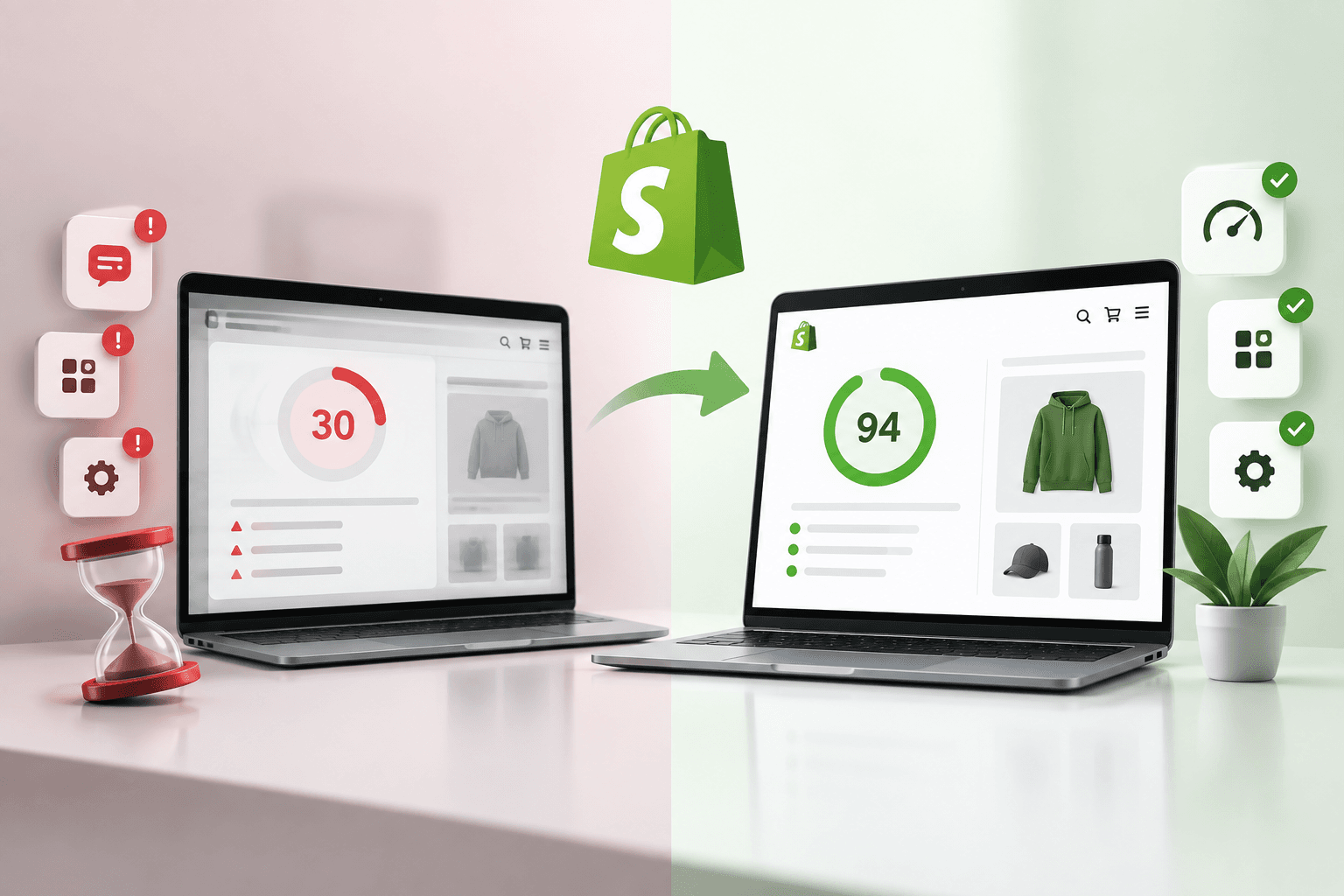
A Shopify store can look perfect, have all the right apps, and still feel painfully slow.
You run a PageSpeed test and see something like:
Performance Score: 30


        LCP: Poor
        INP: Poor
        CLS: Needs Improvement
Then the obvious recommendation appears: remove apps.
But that is not always practical.
A growing ecommerce store may depend on apps for reviews, subscriptions, search, analytics, personalization, loyalty, bundles, customer support, email marketing, conversion optimization and other essential workflows.
Removing everything just to improve a Lighthouse score can create a different problem: you may have a faster website that converts worse and loses important functionality.
The better approach is to identify what is actually making your Shopify store slow and optimize the storefront without blindly deleting essential functionality.
In this guide, we'll walk through a practical Shopify speed optimization process designed to take a slow store from a low performance score toward 90+ where the underlying site conditions make that achievable.
We'll cover Shopify apps, JavaScript, CSS, Liquid, images, fonts, third-party scripts, Core Web Vitals, theme architecture, lazy loading, rendering and the most common Shopify performance mistakes.
First: Understand What Your Shopify Speed Score Actually Means
Before changing your theme, you need to understand what the performance test is measuring.
Tools such as Google PageSpeed Insights and Lighthouse evaluate multiple aspects of a page's loading and responsiveness.
A simplified performance model looks like this:
HTML


↓
CSS
↓
JavaScript
↓
Images
↓
Fonts
↓
Third - Party Scripts
↓
Browser Rendering
↓
User Interaction
A slow result can therefore come from several different layers.
For example, your Shopify theme may be reasonably optimized while third-party JavaScript from apps creates the majority of the work happening in the browser.
Or your JavaScript may be fine while oversized hero images delay the Largest Contentful Paint.
This is why Shopify speed optimization should start with diagnosis, not random code changes.
Why Shopify Page Speed Matters for Ecommerce
Page speed is not just a technical metric.
It directly affects the experience customers have when browsing your products and interacting with your store.
A slow storefront can create friction at several points:
- Customers wait for the homepage to become usable.
- Product images appear late.
- Buttons become interactive slowly.
- Menus respond with delays.
- Product variants take time to update.
- Cart interactions feel sluggish.
- Landing pages take too long to render.
This is especially important for DTC brands because paid traffic often lands directly on product and campaign pages.
A customer coming from an advertisement should not have to wait several seconds before the page becomes useful.
If you want to understand the broader relationship between performance and Shopify stores, read: Why Is My Shopify Store Slow?
The Real Goal: Improve Real User Experience, Not Just the Number
A PageSpeed score is useful, but it should not become the only target.
A better optimization strategy looks at:
PageSpeed Score
   +


Core Web Vitals
    +
    Real User Experience
        +
        Conversion Performance
            +
            Business Functionality
                =
                Successful Optimization
You do not want to remove a review application that generates social proof simply because it adds a small amount of JavaScript.
Instead, determine whether the script can be delayed, loaded only where required, optimized, replaced with a lighter implementation, or moved out of the critical rendering path.
Step 1: Get a Baseline Before Changing Anything
Never start a Shopify performance optimization project by immediately editing theme files.
First create a baseline.
Test important page types such as:
- Homepage
- Product page
- Collection page
- Cart page
- Landing page
Record:
- Performance score
- LCP
- INP
- CLS
- Total JavaScript
- Third-party requests
- Large images
- Long main-thread tasks
- Render-blocking resources
This gives you something to compare after every optimization.
Before Optimization


Homepage: 34
Product: 29
Collection: 38


    ↓


Optimization


    ↓


After Optimization

Homepage: 88
Product: 92
Collection: 90
The important part is not only the final score. You should understand which changes produced the improvement.
Step 2: Find Out What Is Actually Slow
A Shopify store can contain hundreds of requests and multiple layers of code.
Start by categorizing the problem.
Slow Shopify Store

   ↓


Theme Code ?
↓
Yes / No


   ↓


Images ?
↓
Yes / No


   ↓


JavaScript ?
↓
Yes / No


   ↓


Third - Party Apps ?
↓
Yes / No


   ↓


Fonts ?
↓
Yes / No


   ↓


Liquid / DOM Complexity ?
↓
Yes / No
This prevents you from blaming the wrong component.
Step 3: Audit Shopify Apps Instead of Deleting Them
This is one of the most important parts of Shopify speed optimization.
The goal is not:
Delete Apps → Faster StoreThe better approach is:
Inventory Apps
  ↓


Identify Frontend Scripts
↓
Identify Where They Load
↓
Measure Their Impact
↓
Optimize Loading
↓
Keep Essential Functionality
Create an inventory of every app that can inject frontend resources.
| App Type | Potential Frontend Impact | Optimization Opportunity |
|---|---|---|
| Reviews | JavaScript + widgets | Load where reviews appear |
| Wishlist | JavaScript | Load only required templates |
| Chat | Third-party scripts | Delay non-critical loading |
| Analytics | Tracking requests | Review unnecessary tags |
| Subscriptions | Frontend scripts | Load primarily on relevant products |
| Search | JavaScript | Load according to search requirements |
Some apps are essential to your business. Removing them may not be an acceptable solution.
Instead, ask:
- Does this app load on every page?
- Does it need to load immediately?
- Does it need to load above the fold?
- Can its script be deferred?
- Can it load only on specific templates?
- Is there duplicated functionality?
- Can the same functionality be implemented more efficiently?
For a detailed discussion of apps and third-party performance, see: Shopify Apps, Website Speed & Third-Party Performance.
Step 4: Remove Unused Apps and Code, Not Essential Apps
There is an important difference between an app you need and code that remains after an app is no longer needed.
Over time, Shopify stores often accumulate:
- Old app snippets
- Unused JavaScript
- Unused CSS
- Tracking pixels
- Old conversion scripts
- Duplicate libraries
- Unused sections
- Legacy theme code
This creates technical debt.
App Installed
  ↓


App Removed
↓
Old Code Remains
↓
Browser Still Loads Resources
↓
Performance Cost
Before deleting an app, check whether its code or assets remain in the theme.
Step 5: Optimize Your Shopify Hero Image
The largest visual element near the top of a page often has a major influence on the time it takes for the main content to appear.
Common problems include:
- Uploading images much larger than their display dimensions
- Using unnecessarily heavy image formats
- Loading desktop images on small mobile screens
- Lazy-loading the primary above-the-fold image
- Using multiple large promotional images
Your image strategy should consider:
Actual Display Size
   ↓


Responsive Image Size
↓
Appropriate Format
↓
Correct Loading Priority
↓
Compressed Asset
For more detailed guidance, see: Shopify Image SEO: Alt Text, File Size & Optimization.
Step 6: Do Not Lazy-Load Everything
Lazy loading is useful, but using it incorrectly can hurt performance.
Images below the fold are usually good candidates for lazy loading.
But the primary visual element that contributes to LCP should not automatically be treated like a below-the-fold image.
Above the Fold
  ↓


Load Efficiently

Below the Fold
↓
Lazy Load Where Appropriate
A common mistake is applying lazy loading to every image because it sounds like a universal performance optimization.
Performance optimization is contextual.
Step 7: Reduce Unnecessary JavaScript
JavaScript can become one of the largest performance problems on modern ecommerce storefronts.
JavaScript affects both loading and interaction because the browser needs to download, parse, compile and execute scripts.
JavaScript File
  ↓


Download
↓
Parse
↓
Compile
↓
Execute
↓
Main Thread Work
Large JavaScript bundles can therefore make a page feel slow even when the network connection is good.
Audit:
- Theme JavaScript
- App JavaScript
- Analytics scripts
- Tracking scripts
- Chat widgets
- Review widgets
- Animation libraries
- Duplicate JavaScript libraries
Step 8: Load JavaScript Only Where It Is Needed
A common architecture problem is loading every feature on every page.
Imagine your store has:
Product Features


    +
    Collection Features
        +
        Wishlist
        +
        Reviews
        +
        Subscriptions
        +
        Search
        +
        Cart
        +
        Animations

All Loaded Everywhere
That approach increases the amount of JavaScript the browser needs to process.
A better approach is template-aware loading.
Product Page
↓


Product JavaScript

Collection Page
↓
Collection JavaScript

Cart
↓
Cart JavaScript

Search
↓
Search JavaScript
This can significantly reduce unnecessary frontend work.
Step 9: Defer Non-Critical Scripts
Not every script needs to execute before the customer sees the primary content.
Examples of potentially non-critical functionality include:
- Chat widgets
- Some analytics scripts
- Some recommendation systems
- Social embeds
- Non-essential animations
- Secondary widgets
The exact strategy depends on the script and its functionality.
The principle is simple:
Critical Content
  ↓


Load First

Non - Critical Functionality
↓
Load Later
Step 10: Audit Third-Party Scripts
Third-party resources are often overlooked because they are not technically part of your theme code.
Your storefront might load resources from:
- Analytics providers
- Advertising platforms
- Review providers
- Customer support tools
- Heatmap tools
- Personalization platforms
- Social media widgets
- Affiliate tracking systems
Each additional resource can introduce network requests and browser work.
Create a third-party inventory:
| Script | Purpose | Critical? | Optimization |
|---|---|---|---|
| Analytics | Measurement | Usually not visual-critical | Review loading strategy |
| Chat | Support | No | Delay where appropriate |
| Reviews | Social proof | Depends on placement | Load contextually |
| Ads | Attribution | Usually not visual-critical | Audit tags |
Step 11: Optimize Shopify Liquid
Liquid is an important part of Shopify theme development, but Liquid code can become inefficient when templates are poorly structured.
Common issues include:
- Repeated expensive logic
- Duplicated markup
- Unnecessary loops
- Large nested structures
- Overloaded templates
- Repeated rendering of components
- Unused snippets
A cleaner architecture can make a theme easier to maintain and can reduce unnecessary work.
If you want to understand Liquid fundamentals, see: Shopify Liquid Theme Guide.
You can also learn how Liquid objects, tags and filters work here: Shopify Liquid Objects, Tags & Filters.
Step 12: Keep Shopify Sections Modular
A modern Shopify theme should avoid turning every page into one huge template.
Instead, build reusable sections and blocks.
Page


↓
Section
↓
Block
↓
Reusable Component
This makes the theme easier to manage and gives merchants greater flexibility through the Shopify theme editor.
You can learn more about this architecture in: Shopify Sections vs Snippets vs Blocks.
For a broader architectural overview: Shopify Theme Architecture Explained.
Step 13: Remove Unused CSS
CSS is often less problematic than JavaScript, but large stylesheets can still add unnecessary work.
Look for:
- Unused selectors
- Duplicate styles
- Legacy theme styles
- App CSS that is no longer required
- Repeated overrides
- Excessive responsive overrides
A common symptom of a heavily customized theme is CSS like:
.button { ... }


        .button.custom { ... }

.product.button { ... }

.product.button.custom { ... }

.product - page.button.custom { ... }
Over time, these overrides make the stylesheet harder to maintain and can increase its size.
For safe theme-level CSS and JavaScript changes, read: How to Add Custom CSS & JavaScript to Shopify Theme Safely.
Step 14: Optimize Fonts
Fonts can affect the visual rendering of a Shopify storefront.
Common problems include:
- Loading too many font families
- Loading unnecessary font weights
- Using multiple external font providers
- Loading fonts that are not actually used
- Poor font loading strategies
If your brand only needs:
1 Font Family


    +
    2 Weights
there is little reason to load a large collection of additional font files.
Step 15: Reduce DOM Complexity
Your browser needs to construct and update the page structure.
Extremely complex markup can increase the amount of work required during rendering and interaction.
A common problem in heavily customized ecommerce themes is excessive nested markup:
Section


↓
Container
↓
Wrapper
↓
Inner Wrapper
↓
Grid
↓
Column
↓
Content Wrapper
↓
Text Wrapper
↓
Element
Not every wrapper is a performance problem, but unnecessary DOM complexity can make the storefront harder for the browser and developers to manage.
Step 16: Fix Render-Blocking Resources
Some resources can delay the browser from displaying important content.
Your optimization process should identify:
- Blocking CSS
- Blocking JavaScript
- Large font dependencies
- Unnecessary early requests
- Third-party resources loaded too early
The goal is to prioritize the resources required to display the initial experience.
Critical Resources
  ↓


Load Early

Secondary Resources
↓
Load Later

Non - Essential Resources
↓
Avoid / Delay
Step 17: Improve Largest Contentful Paint (LCP)
LCP measures how quickly the largest relevant content element becomes visible in the viewport.
On ecommerce pages, the LCP element may commonly be:
- A hero image
- A large product image
- A large heading
- A promotional banner
If LCP is poor, investigate the complete chain:
LCP Element
↓


HTML Discovery
↓
Resource Request
↓
Network Download
↓
Browser Decode
↓
Rendering
↓
Visible Content
Improving only the image file size may not solve every LCP problem.
You need to understand where the delay occurs.
Step 18: Improve Interaction to Next Paint (INP)
A page can visually load quickly and still feel slow when customers interact with it.
Examples include:
- Opening the menu
- Changing product variants
- Opening a quick view
- Adding a product to cart
- Opening filters
- Using search
- Opening a cart drawer
Heavy JavaScript can create long tasks on the browser's main thread.
User Click


↓
JavaScript Handler
↓
Long Task
↓
Browser Busy
↓
Delayed Visual Update
Reducing JavaScript execution and breaking large tasks into smaller pieces can improve responsiveness.
Step 19: Reduce Cumulative Layout Shift (CLS)
Nothing feels worse than trying to click a product button and having the page move underneath your finger.
Layout shifts can happen when:
- Images do not reserve space
- Fonts change layout after loading
- Dynamic content is injected
- Ads change dimensions
- App widgets appear late
- Promotional bars are inserted dynamically
Reserve appropriate space for dynamic content whenever possible.
Image Request
  ↓


Reserve Dimensions
↓
Image Loads
↓
Content Stays Stable
This is particularly important for product grids and image-heavy collection pages.
Step 20: Optimize Product Page Performance
Product pages deserve special attention because they are often where customers make purchasing decisions.
A product page may contain:
- Multiple product images
- Videos
- Reviews
- Variant selectors
- Subscriptions
- Recommendations
- Size guides
- Product personalization
- Analytics
- Chat
Do not load every possible component at maximum cost before the customer can interact with the product.
Above-the-Fold Product Experience
    ↓


Optimize Aggressively

Secondary Product Content
↓
Load Efficiently

Below - the - Fold Widgets
↓
Lazy / Deferred Loading
Product SEO and performance should also be optimized together. See: Optimize Shopify Product Page SEO.
Step 21: Optimize Collection Pages
Collection pages can become surprisingly heavy because they may render many product cards simultaneously.
Audit:
- Number of products visible initially
- Image dimensions
- Product card markup
- Quick-add functionality
- Hover effects
- Badges
- Filtering JavaScript
- Sorting functionality
- Recommendation widgets
Your collection page should balance merchandising requirements with browser performance.
For SEO optimization alongside performance, see: Shopify Collection Page SEO.
Step 22: Avoid Loading Every Theme Feature Everywhere
A scalable Shopify theme should be modular.
If a feature is only used on one template, there is often no reason to load all of its assets globally.
Global Assets
  ↓


Only Truly Global Features

Template Assets
↓
Only Template - Specific Features
This architecture becomes increasingly important as stores grow and add more functionality.
Step 23: Audit Your Theme Architecture
Sometimes the best performance optimization is architectural rather than a single code change.
Review:
- Templates
- JSON templates
- Sections
- Blocks
- Snippets
- Assets
- Global scripts
- Global styles
- App integrations
If the theme has evolved through years of patches, the problem may be technical debt rather than one specific slow script.
Read: Shopify Theme Architecture Explained.
Step 24: Know When to Rebuild the Theme
Optimization does not always mean modifying the existing code forever.
A rebuild may make sense when:
- The theme contains significant legacy code.
- Multiple developers have created conflicting implementations.
- Every new feature requires another workaround.
- Large amounts of unused CSS and JavaScript remain.
- Templates are duplicated unnecessarily.
- App integrations are deeply embedded into old code.
- Performance improvements are becoming increasingly difficult.
A clean rebuild gives you an opportunity to establish a performance budget and architecture from the beginning.
However, rebuilding should be a strategic decision, not the default answer to every slow Shopify store.
Step 25: Use Shopify Online Store 2.0 Correctly
Online Store 2.0 provides a modular architecture that can make storefront development more flexible.
Modern themes can use:
- JSON templates
- Sections
- Blocks
- App blocks
- Dynamic sources
- Theme settings
But simply using Online Store 2.0 does not automatically make a store fast.
The implementation still matters.
Learn more: Shopify Online Store 2.0 Guide.
Step 26: Optimize the Shopify Cart Experience
Cart functionality can introduce additional JavaScript, especially when stores use cart drawers, upsells, bundles, subscriptions and dynamic discounts.
Review whether every cart feature is necessary on the initial page load.
Product Page
 ↓


Add to Cart
↓
Minimal Cart Interaction
↓
Load Secondary Cart Features
↓
Upsells / Recommendations
The goal is to make the core purchasing interaction responsive before loading secondary functionality.
Step 27: Do Not Ignore Mobile Performance
A Shopify store may perform well on a powerful desktop computer while struggling on a mid-range mobile device.
This happens because mobile devices have different:
- CPU performance
- Memory constraints
- Network conditions
- Screen dimensions
- Browser behavior
Test mobile separately.
Desktop Test
  +


Mobile Test
    +
    Real User Data
        =
        Better Performance Diagnosis
Step 28: Build a Shopify Performance Budget
Instead of optimizing only when the store becomes slow, define performance expectations for future development.
A performance budget can include:
- Maximum JavaScript size
- Maximum CSS size
- Image size targets
- Third-party script limits
- Number of external requests
- Core Web Vitals targets
- Mobile performance targets
New Feature
↓


Does It Add JavaScript ?
↓
Does It Add Third - Party Requests ?
↓
Does It Affect LCP ?
↓
Does It Affect INP ?
↓
Performance Test
↓
Approve / Optimize
This prevents performance from slowly degrading after every new marketing feature.
Step 29: Optimize Safely Without Breaking Your Store
Performance work can affect functionality.
Never make large changes directly to the live theme without testing.
A safer workflow is:
Current Theme
  ↓


Duplicate / Development Version
↓
Make One Change
↓
Test Functionality
↓
Run Performance Test
↓
Compare Results
↓
Deploy
This makes it easier to identify which change caused an improvement or regression.
For more guidance on safe Shopify theme modifications: How to Customize Shopify Theme Safely.
Step 30: Repeat Testing After Every Major Change
Shopify performance optimization is an iterative process.
For example:
Initial Score


30
↓
Optimize Hero Image
45
↓
Reduce JavaScript
58
↓
Optimize Apps
68
↓
Clean CSS
74
↓
Improve Theme Architecture
82
↓
Optimize Remaining Bottlenecks
90 +
The exact score improvement will vary by store.
Some stores can reach 90+ relatively easily, while others may have architectural or third-party constraints that make a specific score unrealistic.
The important objective is measurable improvement in real performance and user experience.
The Shopify Speed Optimization Workflow We Recommend
Instead of randomly applying PageSpeed recommendations, use a structured workflow.
1. Establish Baseline
      ↓


2. Test Key Templates
↓
3. Identify Bottlenecks
↓
4. Audit Apps
↓
5. Audit Third - Party Scripts
↓
6. Optimize Images
↓
7. Optimize JavaScript
↓
8. Optimize CSS
↓
9. Review Liquid
↓
10. Review Theme Architecture
↓
11. Improve Core Web Vitals
↓
12. Test Mobile
↓
13. Verify Functionality
↓
14. Measure Again
30 → 90+: What Usually Makes the Biggest Difference?
There is no universal fix that turns every Shopify store from 30 to 90+.
However, low-scoring stores often have multiple optimization opportunities at the same time.
| Problem | Typical Optimization Direction |
|---|---|
| Oversized hero image | Resize, compress and prioritize correctly |
| Too much JavaScript | Remove unused code and load conditionally |
| Too many third-party scripts | Audit, defer and remove unnecessary tags |
| Heavy app widgets | Load only where required |
| Unused CSS | Clean legacy styles and overrides |
| Slow fonts | Reduce families and weights |
| Large DOM | Simplify component structure |
| Heavy theme architecture | Refactor or rebuild strategically |
| Layout shifts | Reserve space for dynamic content |
| Slow interactions | Reduce main-thread JavaScript work |
What You Should NOT Do to Speed Up Shopify
Some common speed optimization advice can create more problems than it solves.
Do Not Delete Every App
Essential business functionality has value. Optimize how it loads before deciding that it must disappear.
Do Not Remove Analytics Blindly
Measurement is important for ecommerce decision-making. Audit duplicate or unnecessary tracking instead.
Do Not Lazy-Load Everything
Critical above-the-fold resources need a different loading strategy from below-the-fold content.
Do Not Trust One Lighthouse Test
Performance can vary because of network, device and test conditions. Look at trends and, where available, real user data.
Do Not Rewrite the Entire Theme Immediately
Diagnose first. Sometimes a few architectural improvements can solve the biggest bottlenecks without a complete rebuild.
A Practical Shopify Speed Audit Checklist
- Run baseline performance tests.
- Test homepage performance.
- Test product page performance.
- Test collection page performance.
- Check mobile performance.
- Measure LCP.
- Measure INP.
- Measure CLS.
- Audit hero images.
- Audit product images.
- Review JavaScript bundles.
- Review third-party scripts.
- Audit installed apps.
- Check old app code.
- Review CSS size.
- Review fonts.
- Check DOM complexity.
- Review Liquid logic.
- Review sections and snippets.
- Check global assets.
- Check template-specific assets.
- Test cart interactions.
- Test product variant interactions.
- Test navigation.
- Test search and filtering.
- Run performance tests after changes.
- Verify functionality before deployment.
The Bigger Problem: Performance Debt
A Shopify store rarely becomes slow overnight.
More commonly, performance gradually degrades as new functionality is added.
Launch


↓
New App
↓
New Campaign
↓
New Tracking
↓
New Widget
↓
New Animation
↓
New Integration
↓
New Custom Code
↓
More JavaScript
↓
More Requests
↓
Slower Store
This is performance debt.
The solution is not to stop improving the store.
The solution is to make performance part of the development process.
How to Keep Your Shopify Store Fast After Optimization
Getting from 30 to 90+ is only useful if the store stays fast.
Establish a repeatable process:
New App


↓
Performance Review

New Theme Feature
↓
Performance Review

New Landing Page
↓
Performance Review

New Tracking Script
↓
Performance Review

Major Release
↓
Core Web Vitals Review
This prevents your performance score from gradually returning to where it started.
When Shopify Speed Optimization Requires Development Expertise
Basic improvements such as resizing images and removing unused functionality can often be handled internally.
More complex problems may require Shopify development expertise, particularly when the issue involves:
- Liquid architecture
- Theme refactoring
- JavaScript execution
- App integrations
- Custom sections
- Theme asset loading
- Complex cart functionality
- Third-party integrations
- Core Web Vitals
- Theme rebuilds
In those cases, the goal should be to improve performance without breaking the business functionality that makes the store valuable.
Our Shopify Development service focuses on Shopify theme development, custom Liquid, storefront optimization and performance-focused ecommerce development.
Final Thoughts
A slow Shopify store does not automatically mean you need to delete half of your apps.
It means you need to understand where the performance cost is coming from.
Slow Shopify Store
   ↓


Measure
↓
Diagnose
↓
Prioritize
↓
Optimize
↓
Test
↓
Measure Again
The biggest improvements often come from a combination of changes: optimizing images, reducing unnecessary JavaScript, controlling third-party scripts, cleaning unused theme code, improving Liquid architecture, loading resources conditionally and fixing Core Web Vitals bottlenecks.
Most importantly, do not optimize blindly.
An ecommerce store needs more than a high Lighthouse score. It needs to remain functional, measurable, conversion-friendly and easy to maintain.
The best Shopify performance strategy is therefore not:
"Delete everything until the score becomes green."It is:
"Keep what the business needs.


Optimize what the browser doesn't need to load immediately.
Remove what provides no value.
Measure every major change."
With the right technical approach, even a Shopify store with essential apps, custom functionality and a growing catalog can achieve substantial performance improvements without sacrificing the features customers actually use.
Your Shopify Speed Optimization Action Plan
- Run PageSpeed tests on your key Shopify templates.
- Record LCP, INP and CLS.
- Identify the largest performance bottlenecks.
- Audit essential and non-essential apps.
- Identify third-party scripts.
- Optimize above-the-fold images.
- Remove unused theme and app code.
- Reduce unnecessary JavaScript.
- Load scripts only where they are needed.
- Clean unused CSS.
- Optimize fonts.
- Review Liquid and theme architecture.
- Improve Core Web Vitals.
- Test mobile performance.
- Test all important ecommerce functionality.
- Measure performance again.
- Repeat until the major bottlenecks are resolved.
If your Shopify store is stuck around a low PageSpeed score despite having already optimized images and removed obvious unnecessary code, the next step is usually a deeper theme, JavaScript, app and third-party performance audit rather than deleting essential functionality.